App Lock - Fingerprint Lock
360 ToolProductivity
4.65.44K Reviews
- Version
- 1.4.3.0
- Installs
- 100.00M
- Age Rating
- Everyone
Screenshots
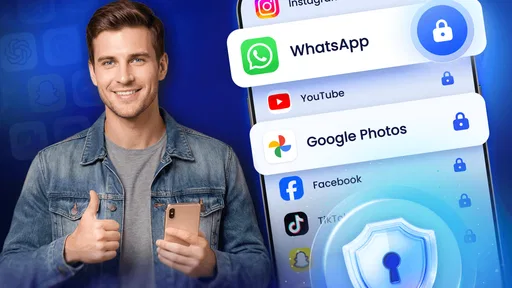
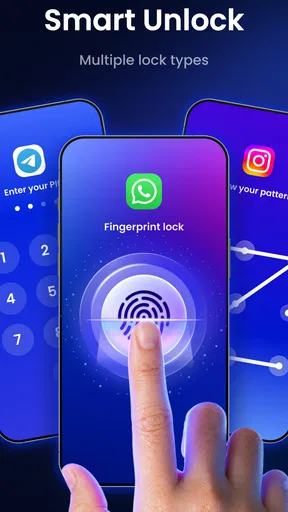
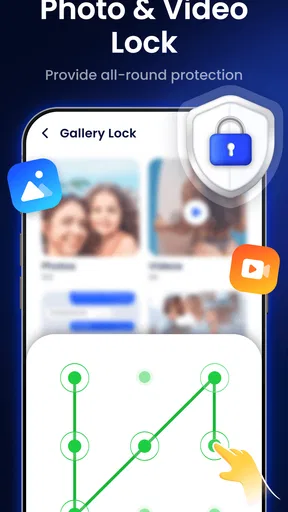
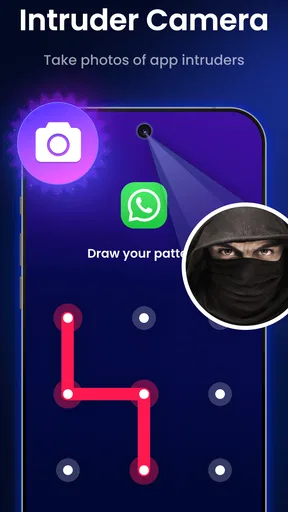
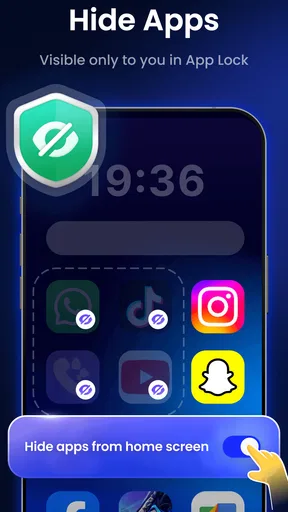
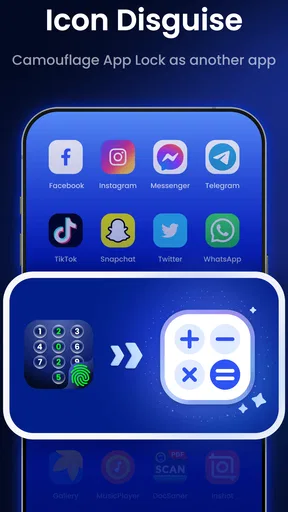
Our Review of App Lock - Fingerprint Lock
 Analysis by Appyee
I started using App Lock - Fingerprint Lock as a simple way to put an extra barrier around selected apps, but it quickly became clear that its usefulness depends on how thoughtfully you set it up. This is a productivity app from 360 Tool, aimed at people who want more control over private areas of a phone rather than a complicated security suite. It combines app protection with a private browser, custom themes, and junk-removal tools, so it tries to cover several everyday privacy and maintenance needs in one place.
My first impression was practical rather than exciting. The app is easy to understand: choose what should be protected, use fingerprint access where the phone supports it, and keep the rest of the device available as normal. That makes it more approachable than security tools filled with technical settings. At the same time, anyone expecting enterprise-grade device management or a complete replacement for Android’s built-in security will probably find its scope narrower.
How the lock fits into everyday phone use
The main reason I would install this app is selective privacy. I do not necessarily want to lock my entire phone every time I hand it to someone, but I may want to protect messages, photos, notes, email, or financial apps. A separate app lock gives me that middle ground. I can let somebody look at a map or make a call without giving them an open route into everything else.
Fingerprint access is especially convenient in short, repeated moments. Instead of entering a passcode whenever I move between protected apps, I can authenticate with the same finger I already use for the phone. The experience feels natural when the sensor responds quickly. It is less pleasant when a finger is wet, the sensor is dirty, or the phone does not recognize the print, so I would still make sure the backup unlock method is memorable before relying on the app.
A realistic example is sharing a phone during a trip. Someone may need to check a booking, use the camera, or follow directions, while I want to keep work conversations and personal accounts private. Locking only those sensitive apps is less disruptive than locking every screen. This is where the app feels more useful than a blanket device lock: it supports temporary sharing without requiring me to supervise every tap.
The private browser adds another layer to that same use case. I see it as a convenient place for browsing that I would rather keep separate from my regular browser routine. It may be useful when researching a sensitive topic, checking something on a shared device, or avoiding a crowded browsing history. I would not treat it as a guarantee of complete anonymity, though. A private browsing area can reduce local traces inside the app, but it should not be confused with a full privacy service or protection from every form of online tracking.
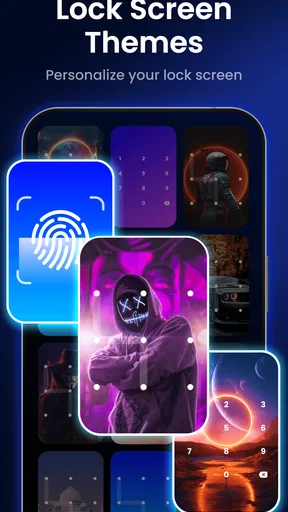
Custom themes are a smaller feature, but they matter more than they first appear to. A security tool that looks obviously different from the rest of the phone can attract attention when somebody is borrowing the device. A theme that fits my normal setup makes the app feel less intrusive. I would choose appearance for clarity rather than camouflage, because the most important thing is still being able to recognize the correct lock screen quickly.
What happens when the connection matters
The lock itself is a local interaction from a user’s point of view: I open a protected app and authenticate. However, the broader experience includes features that may involve browsing or maintenance activity, and those moments can feel different when the network is weak. The private browser is the clearest example. Pages may load slowly, fail to load, or behave differently on a congested mobile connection, and that is not something an app lock can solve.
I would therefore separate two expectations. If my goal is to restrict access to selected apps, I think about authentication and device behavior first. If my goal is to browse privately, I also need to think about signal quality, the website itself, and the limits of privacy tools. Treating these as two independent jobs prevents disappointment. The app can be a useful privacy layer without turning an unstable connection into a reliable one.
The junk-removal feature also deserves a realistic reading. It can be handy when I want one place to review unnecessary files or tidy up storage, but cleanup tools require attention. I would not approve every suggested deletion automatically. Downloads, old documents, exported photos, and app-created files can look disposable even when I still need them. My preferred workflow is to review categories carefully, remove obvious leftovers, and leave anything whose purpose is unclear.
That cautious approach is particularly important when traveling or working away from a strong network. A cleanup session can be tempting when storage is tight, but deleting something needed for later can be more troublesome when I am offline or have limited data. I would do a careful review before a trip rather than treating the tool as an emergency button once storage becomes a problem.
Using it across different mobile situations
This app makes the most sense on a personal Android phone that is regularly shared with family, friends, coworkers, or children. It can also help when I lend my device for a quick task and want to reduce accidental access. The age rating is Everyone, which matches the straightforward nature of the utility, although responsible setup still matters because the app controls access to personal content.
On a work phone, I would be more selective. If the device is managed by an employer, existing security policies may already control which apps can be opened and how authentication works. Adding another layer could create confusion, especially if a work application depends on background activity, notifications, or frequent sign-ins. In that situation, I would check the organization’s rules before installing it and avoid assuming that a consumer app can replace managed security.
There is also a difference between privacy from casual access and protection from a determined attacker. This app is well suited to the first problem: stopping someone who picks up my unlocked phone from casually opening a protected app. It is not the only security measure I would use for sensitive information. A strong device passcode, current system updates, careful account protection, and sensible handling of notifications remain important.
Notifications are one of the details I would review after setup. Even if an app is locked, a message preview or account alert may reveal information on the phone’s notification shade. App locking does not automatically make every visible notification private. I would adjust notification previews separately for especially sensitive apps. That small step closes a gap that many people overlook when they assume the lock screen covers the entire experience.
Another practical tip is to protect only the apps that truly need it. Locking everything can make the phone tiring to use, especially when I am moving quickly between maps, messages, authentication tools, and payment services. A smaller protected list is easier to maintain and less likely to make me disable the app out of frustration. I would begin with the two or three apps that contain the most personal information, then expand the list only if the daily routine still feels comfortable.
Recovery matters more than the first setup
The first setup is usually the easy part. The more important question is what happens when the fingerprint does not work, the phone restarts, the sensor is unavailable, or I forget the backup method. I would configure recovery before locking anything important. A security feature is only helpful if I can regain access without resorting to risky shortcuts or deleting the app in a panic.
Fingerprint recognition is convenient, but it should be treated as one access method rather than the entire plan. Cold hands, a damaged screen or sensor, moisture, and changes in how I hold the phone can all make biometric unlocking less dependable. My advice is simple: test the backup route immediately after enabling protection, while I still have normal access and time to correct a mistake.
I would also test the setup with ordinary actions instead of assuming it works perfectly. Lock the screen, reopen the protected app, switch between protected and unprotected apps, and restart the phone if that is part of the normal routine. This helps reveal friction before the app is needed in a stressful moment. It also shows whether the protection level is practical for the way I actually use the phone.
Travel creates another recovery concern. If I am in a place with poor signal, I do not want to discover that I have made the private browser my only route to something important. I would keep essential travel details available through a normal, dependable method and use the app’s privacy tools for convenience rather than as my sole backup. This is not a criticism of the lock feature; it is a reminder that connectivity and authentication problems often appear together when people are away from home.
Version changes can affect comfort as well. The current version is 1.4.3.0, and the app works on Android six point zero or later. I would keep the application and the operating system maintained through the normal device process, then recheck the protected-app list after a significant update. A system update, a changed app package, or a new phone setup can alter how permissions and background behavior feel, so a quick review is worthwhile.
Being careful with data and cleanup
Because this is a privacy-oriented tool, I would pay attention to what I am asking it to do rather than enabling every option automatically. App protection, browsing, and junk removal are different functions with different consequences. The lock is about access control, the browser is about keeping a separate browsing space, and cleanup is about storage management. Keeping those purposes distinct makes it easier to decide which parts belong in my routine.
My data-conscious workflow would be to use the private browser when it genuinely adds separation, avoid unnecessary browsing over mobile data, and reserve cleanup for a deliberate review. On a limited plan, browsing inside a privacy-focused area does not make pages use less data. Images, video, downloads, and advertising content can still consume the same kind of connection resources. The privacy benefit and the data cost are separate questions.
I would also avoid running a cleanup session while distracted. The fastest-looking option is not always the safest one. I prefer checking large files and obvious temporary material one group at a time, especially before removing anything from a phone used for work, study, or travel. This is one of the app’s less glamorous trade-offs: convenience is valuable, but convenience can encourage decisions that are too quick.
The free price makes experimenting easy, although in-app purchases cost $3.99 per item. I would start with the basic experience and decide later whether any paid element is worth adding to my routine. Since the app combines several utilities, I would judge each one separately instead of paying simply because I use the lock. Someone who only wants a basic app lock may find the extra tools unnecessary, while a person who also wants a private browser and storage cleanup may see more value in having them together.
Its popularity is notable: the app has more than 100 million installs, with an average rating of 4.6 from roughly 405 thousand ratings and about 5.4 thousand written reviews. Those figures suggest that the basic idea resonates with a large audience, but they do not remove the need to test it on my own phone. App-lock behavior can vary with device software, fingerprint hardware, battery settings, and manufacturer customizations.
Where it beats the usual alternatives
The usual alternative is the phone’s built-in security: a device passcode, fingerprint unlock, and perhaps a manufacturer-provided private space. Built-in tools are often the cleaner choice when they already offer app-specific protection, because they are integrated with the operating system and may require less maintenance. I would choose those first if they cover my needs well.
The advantage of this app is its focused combination of functions. Instead of searching separately for an app lock, a private browsing space, and a storage-cleanup utility, I can approach those tasks from one productivity app. That can be convenient for a personal device, particularly when I want a simple interface rather than several unrelated tools. The trade-off is that a combined app may not be the best specialist in every area.
For browsing, a dedicated privacy browser may offer more advanced controls. For storage, a file manager or the operating system’s own storage screen may provide a clearer view of what will be removed. For high-security work, a managed device solution is more appropriate. I would recommend App Lock - Fingerprint Lock when the priority is practical, selective privacy with a few useful extras—not when I need the deepest controls in any single category.
I would also skip it if I dislike maintaining a second security layer. Some people want their phone to behave exactly as the operating system designed, with no additional lock prompts or utility screens. Others may find repeated authentication irritating when they are constantly switching between protected apps. In those cases, a built-in private space or a stronger device-level routine may feel more consistent.
My final connectivity verdict
After using it as a selective privacy tool, I see the strongest value in ordinary mobile situations: lending a phone briefly, separating personal apps from casual access, keeping a distinct browsing area, and reviewing storage without installing several unrelated utilities. The experience is most satisfying when I choose a small, sensible set of protected apps and prepare the recovery method before I need it.
Connectivity shapes the surrounding features more than the central idea. Browsing quality still depends on the network and the websites I visit, while cleanup is best handled before storage pressure becomes urgent. I would not describe the app as a solution to connection problems, nor would I assume that a private browser makes every online activity anonymous. Its role is more modest and more useful: it adds a layer of control to the phone I already carry.
Released on May 15, 2023, and available free for Everyone on compatible Android devices, the app is accessible to a broad audience. The developer, 360 Tool, has made a tool that is easy to approach, but the best results still come from careful choices rather than turning on every option. I especially appreciate that its practical benefits are visible in small moments, such as handing over a phone without handing over every private conversation.
My recommendation is positive for people who want selective app protection and appreciate having a private browser and cleanup feature nearby. I would recommend starting conservatively, checking notification visibility, testing recovery, and reviewing cleanup suggestions manually. If those habits fit the way you use your phone, this is a convenient addition. If you need advanced security management, complete anonymity, or a highly specialized storage tool, I would look elsewhere. The best reason to use it is controlled convenience, not the promise of perfect privacy.
Verdict
Strengths of App Lock - Fingerprint Lock
- Supports fingerprint unlocking for quick and convenient access.
- Can help protect private apps from casual snooping.
- Simple interface makes locking apps easy to set up.
- Useful for securing messages, photos, and social media apps.
- Offers an extra privacy layer when sharing your phone.
Limitations of App Lock - Fingerprint Lock
- Fingerprint support depends on the device’s biometric hardware.
- May require background access to keep protection active.
- Some features may be limited or interrupted by battery savers.
- A forgotten PIN can make recovery more difficult.
- Ads or premium prompts may affect the overall experience.
Other Releases by 360 Tool
View All
Volume Booster - Sound Booster
Music & Audio4.7

Video Downloader - HD & Easy
Video Players & Editors4.6
Similar Picks in This Category
View All
Google Calendar
Google LLC4.6

Google Drive
Google LLC4.3

Google Assistant
Google LLC3.9

Microsoft OneDrive
Microsoft Corporation4.6

Samsung Calendar
Samsung Electronics Co., Ltd.4.1

Microsoft OneNote: Save Notes
Microsoft Corporation4.6
Frequently Asked Questions
What is App Lock - Fingerprint Lock used for?
App Lock - Fingerprint Lock is designed to protect selected apps on your Android device from unauthorized access. After setting it up, you can require a fingerprint, PIN, pattern, or another supported security method before opening private apps such as messaging, gallery, social media, banking, or email applications. It is especially useful when sharing your phone with family or lending it to someone temporarily.
Does App Lock - Fingerprint Lock work with every application?
The app generally allows you to choose which installed applications should be protected, but compatibility can vary depending on your Android version, device manufacturer, and system restrictions. Some system apps or special services may not support locking correctly. During testing, it is best to protect a few important apps first and confirm that the lock appears reliably before securing every application on your phone.
Can I unlock protected apps with my fingerprint?
Yes, fingerprint unlocking is available when your smartphone has a compatible fingerprint sensor and fingerprint security is already configured in the device settings. The app normally uses the system’s biometric authentication rather than storing your fingerprint itself. If the sensor fails, the backup PIN, password, or pattern configured inside the app may be required to access protected applications.
What happens if I forget my App Lock PIN or pattern?
If you forget the security method used by App Lock - Fingerprint Lock, recovery options depend on the version of the app and the permissions granted during setup. Some versions may provide a recovery question, email-based reset, or another verification method, while others may require clearing app data or reinstalling the application. Set a memorable backup method and review recovery settings before locking important apps.
Does App Lock - Fingerprint Lock protect my data completely?
App Lock - Fingerprint Lock adds a useful privacy barrier, but it should not be considered complete protection for every type of personal data. Someone with sufficient device access, technical knowledge, or the ability to change system settings may still find ways around certain app lockers. For stronger security, use a screen lock, keep Android updated, avoid sharing your unlock credentials, and download the app only from a trusted source.
